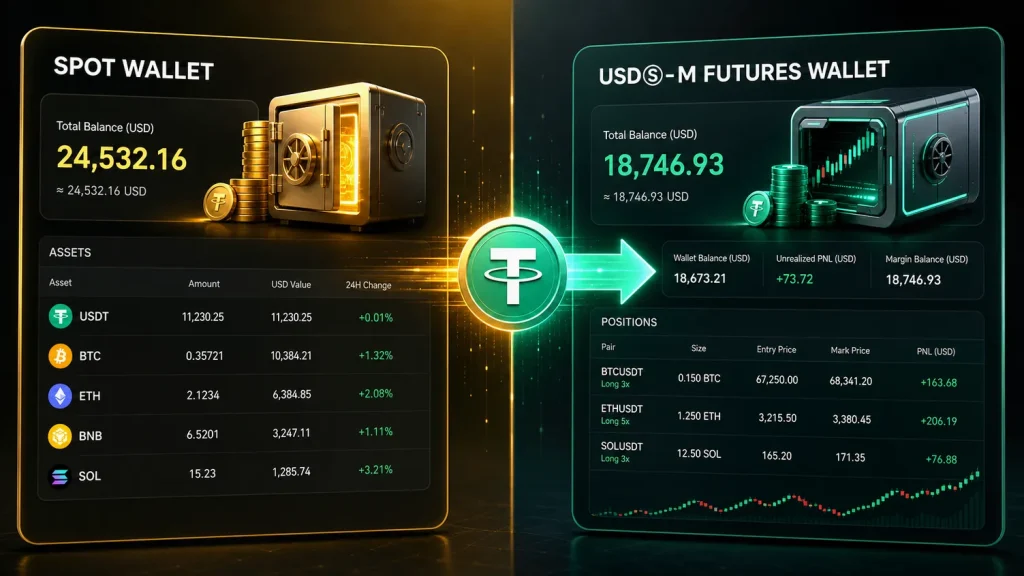
Moving funds between accounts is a basic task for anyone using crypto derivatives, yet it is also one of the easiest places to make an avoidable mistake. This guide explains how to transfer between Spot and Futures wallets on Binance, what the transfer changes, and which checks to make before opening or closing a futures position.

- 20% trading fee discount
- $100 signup bonus
- $10,000 futures bonus

- 20% fee cashback
- $60,000 futures bonus

- 20% trading fee discount
- $30,050 signup bonus

- 50% trading fee discount
- 20% fee cashback
- $6,200 futures bonus

- 20% fee cashback
- $10,000 bonus

- 20% fee cashback
- $8,000 bonus
Important: A wallet transfer inside Binance is not a blockchain withdrawal. Your assets remain in your Binance account, and internal transfers are generally immediate. Futures trading carries substantial risk, including the risk of liquidation.
Spot Wallet vs. Futures Wallet: What Is the Difference?
Your Spot wallet holds assets used for ordinary crypto purchases and sales. If you buy BTC with USDT on the spot market, the purchased BTC and remaining USDT are reflected in your Spot balance.
A Futures wallet holds collateral for derivatives positions. On Binance, this is normally separated into products such as USDⓈ-M Futures—commonly margined in USDT or USDC—and COIN-M Futures, which use crypto assets as collateral. Funds in a Futures wallet can support margin requirements, unrealized profit and loss, and trading fees.
This separation is useful because it prevents your spot balance from automatically becoming futures margin. Before you can trade a perpetual or delivery contract, you must deliberately transfer funds from Spot wallet to Futures wallet.
Before You Transfer Funds to Futures
Complete these checks first:
- Enable the correct Futures account. Binance may ask you to open a Futures account, complete a risk notice, and set security options before your first transfer.
- Choose the contract type carefully. For a USDT-margined contract, transfer USDT to USDⓈ-M Futures. Do not assume a balance transferred to COIN-M Futures can be used for a USDⓈ-M order.
- Check the asset you are moving. USDT is a common choice for USDⓈ-M trading, but availability depends on the selected wallet and account settings.
- Decide on a conservative amount. Only move capital you can afford to place at risk. Transferring more collateral does not make a trade safer if position size and leverage are too high.
- Review account restrictions. Compliance reviews, security holds, or certain open-order conditions can affect available balances.
If you have not created an account yet, you can register through Binance with referral code CRYPTONEWER. The listed promotion provides a 20% fee discount and up to $10,000 in benefits, subject to Binance’s applicable terms, eligibility rules, and campaign conditions.
How to Transfer Between Spot and Futures Wallets on Binance Web
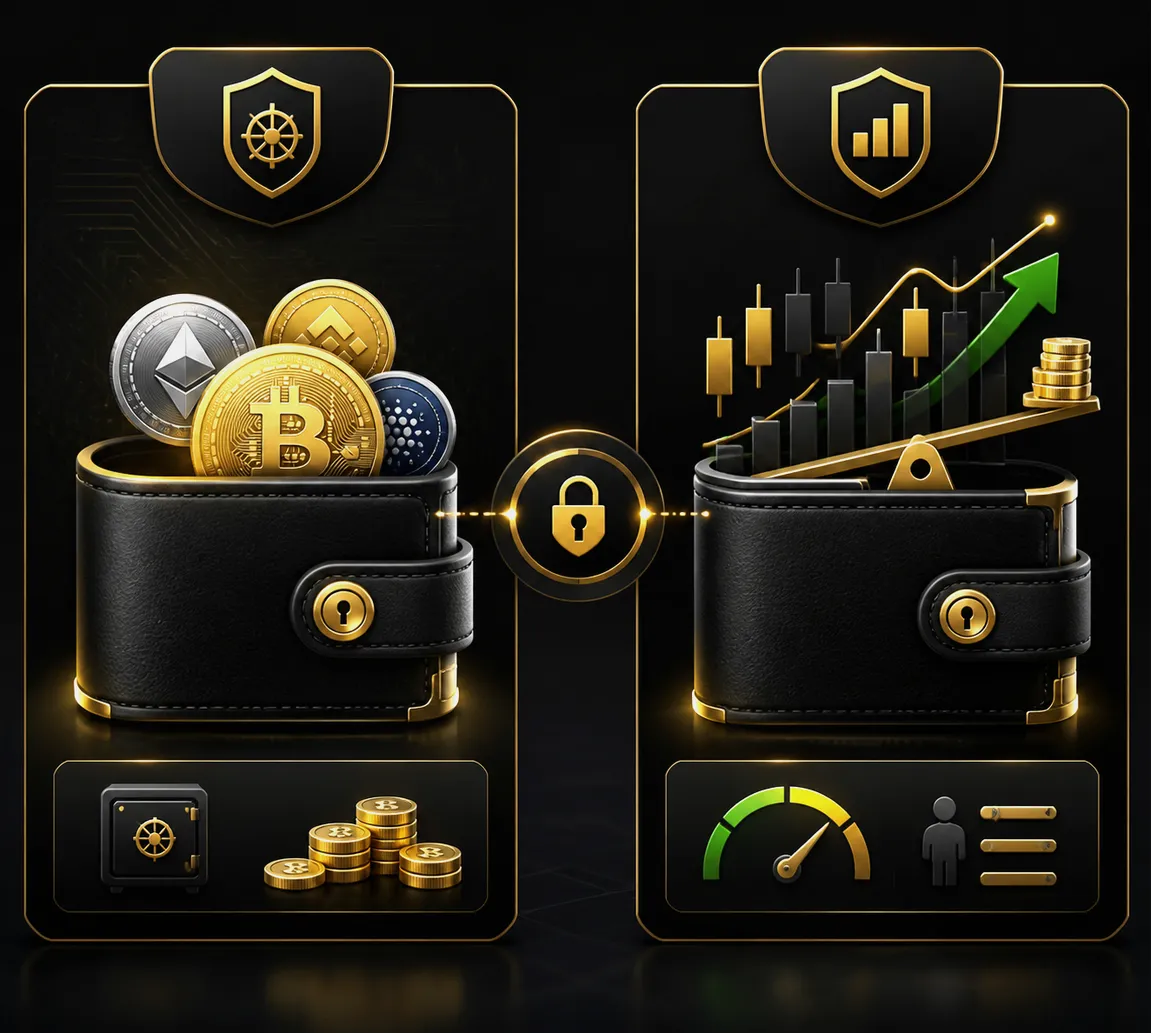
The desktop process is straightforward and normally takes only a few moments.
- Sign in to Binance and select Wallet from the top navigation.
- Open Overview, Fiat and Spot, or the relevant wallet page, then select Transfer.
- In the transfer panel, set the From wallet to Spot.
- Set the To wallet to USDⓈ-M Futures or COIN-M Futures, depending on the market you plan to trade.
- Select the asset, such as USDT.
- Enter the amount. Use Max only after verifying that you do not need those funds for open spot orders, fees, or other activity.
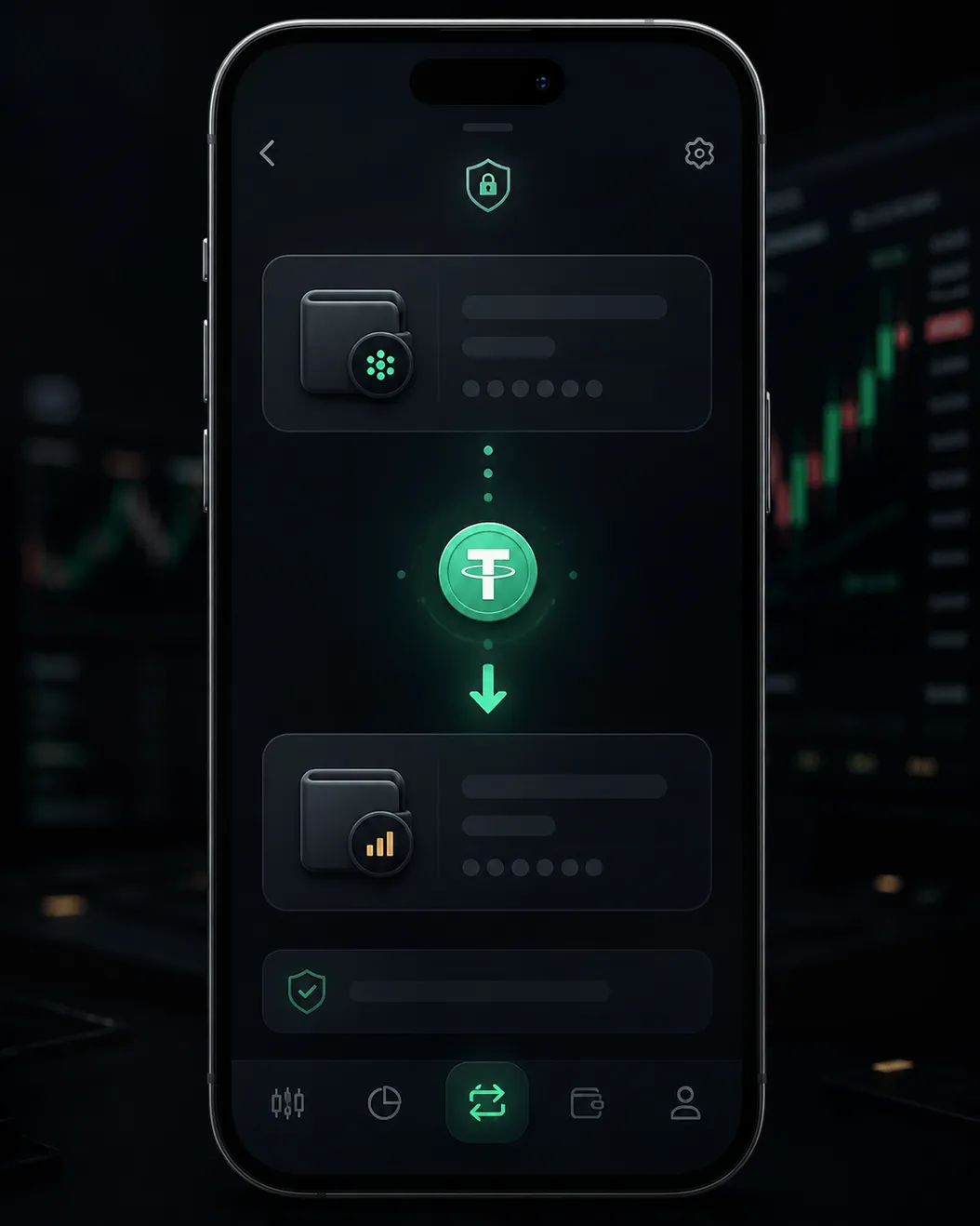
- Review the direction, asset, destination wallet, and amount.
- Click Confirm.
After confirmation, go to the Futures trading screen and check the Available Balance or Assets section. The transferred funds should appear as available collateral once the internal transfer has been processed.
Reversing the Transfer Direction
To move unused collateral back, follow the same workflow but switch the direction:
- From: USDⓈ-M Futures or COIN-M Futures
- To: Spot
This is an important habit after closing a position. Returning excess funds to Spot can make it easier to track how much capital is actively allocated to derivative trading versus long-term holdings or spot orders.
How to Transfer Funds From Spot to Futures on the Binance App
The mobile interface uses similar labels, though the location can vary slightly by app version.
- Open the Binance app and tap Wallets.
- Tap Transfer.
- Select Spot as the source wallet.
- Select USDⓈ-M Futures or COIN-M Futures as the destination.
- Choose the coin or stablecoin you want to move.
- Enter the amount and tap Confirm Transfer.
- Open the Futures tab and verify that the funds appear in your available balance.
If you are already on a Futures market screen, there may also be a Transfer button near your balance or order-entry panel. That shortcut should open the same internal-transfer form with the Futures wallet preselected.
Why Your Futures Balance May Not Be Fully Available
A transferred balance is not always identical to the amount you can immediately use for a new order. Several factors can reduce available funds:
- Open positions: Margin is reserved to maintain existing positions.
- Open orders: Binance may reserve margin for orders that have not filled or been canceled.
- Unrealized losses: A losing position can reduce usable margin before it is closed.
- Funding fees: Perpetual contracts may periodically pay or receive funding.
- Cross margin settings: In Cross Margin mode, your wallet balance may be shared across eligible positions, while Isolated Margin assigns margin position by position.
For example, depositing 500 USDT into USDⓈ-M Futures does not mean you should open a 500 USDT position at high leverage. The order panel’s margin estimate, liquidation price, and available balance are more meaningful numbers to review before placing a trade.
Spot to Futures Transfer Errors and Practical Fixes
You transferred to the wrong Futures wallet
If you sent USDT to USDⓈ-M Futures but intended to trade a COIN-M contract, use the Transfer function again and select the proper destination. Internal transfers are distinct from on-chain transactions, so you generally do not need a network address to correct the allocation.
The transfer button is unavailable
Confirm that you have completed Futures activation and any required verification. Also check whether the selected asset has an available balance in the source wallet. Assets locked in open orders cannot usually be transferred until the orders are canceled or filled.
Your funds are visible but you cannot open the order
Review the contract’s minimum order size, current price, leverage setting, and available margin. An existing position or open order can consume margin even when the total Futures balance looks sufficient.
You cannot transfer all of your Futures funds out
Close positions you no longer need, cancel pending orders, and account for maintenance margin. With Cross Margin, funds may remain tied to account-wide risk until relevant positions and orders are resolved.
Risk Controls to Use After Funding a Futures Wallet
Knowing how to transfer between Spot and Futures wallets is only the first operational step. The next step is controlling exposure.
- Start with low leverage or no trade while learning the interface.
- Check whether Cross or Isolated margin is selected before entering an order.
- Use a stop-loss plan; do not rely solely on liquidation as an exit mechanism.
- Keep a portion of your portfolio outside the Futures wallet when that fits your risk plan.
- Review the contract specifications, including tick size, funding schedule, and settlement asset.
- Monitor positions after volatile market moves, especially when using leverage.
For traders seeking a single exchange account for spot purchases and derivatives access, create a Binance account using CRYPTONEWER and review the displayed referral offer before registration. Promotional discounts and benefits can change, so confirm the terms shown on Binance at sign-up.
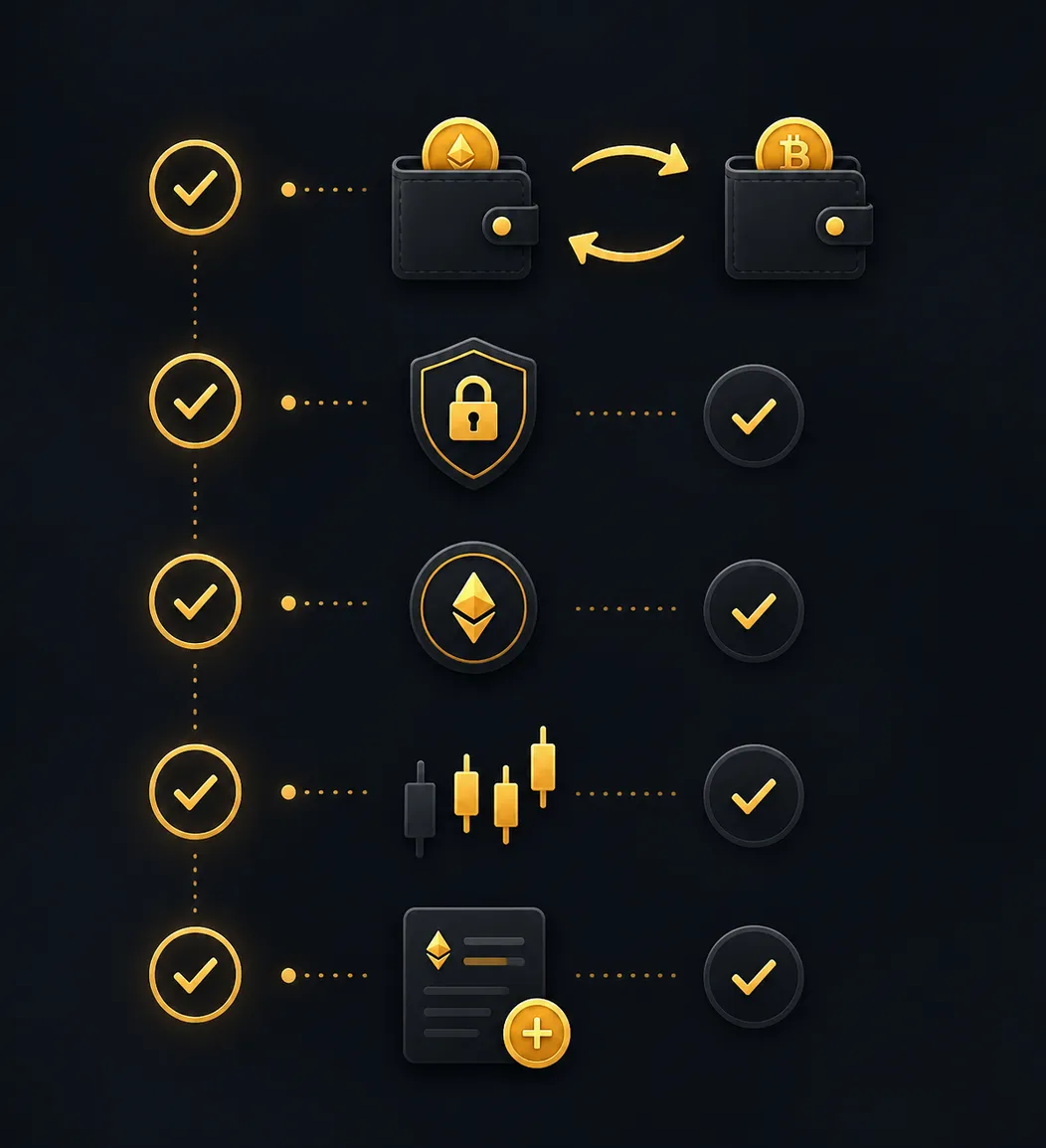
Quick Checklist Before Confirming a Wallet Transfer
| Check | What to verify |
|---|---|
| Transfer direction | Spot → USDⓈ-M Futures, Spot → COIN-M Futures, or Futures → Spot |
| Asset | The collateral asset matches the contract you intend to trade |
| Amount | You are moving only the amount appropriate for your risk limit |
| Existing commitments | Open orders and positions are not already using the funds |
| Margin mode | Cross and Isolated margin have different risk behavior |
| Final screen | Wallet names, token, and amount are correct before confirmation |
Internal wallet transfers are simple, but treating them as a deliberate allocation decision can improve discipline. Keep your spot holdings, active futures collateral, open orders, and leverage settings visible before every trade.