
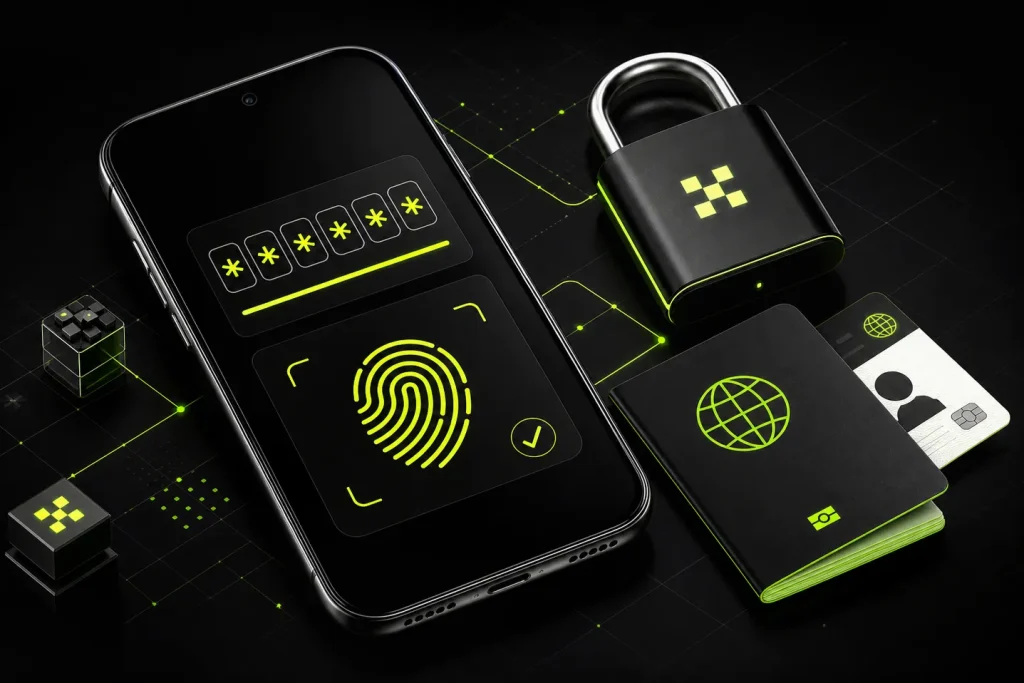
Strong account security is not optional anymore—it’s essential. If you’re trading, staking, or holding assets on OKX, the right configuration of OKX Security Settings (KYC & 2FA) drastically reduces the risk of account takeover, withdrawal fraud, or failed verifications that slow you down at critical moments. This hands-on guide walks you through OKX KYC verification, setting up app-based 2FA, enabling anti-phishing and withdrawal whitelists, and tightening the rest of your security stack.

- 20% trading fee discount
- $100 signup bonus
- $10,000 futures bonus

- 20% fee cashback
- $8,000 bonus

- 20% fee cashback
- $60,000 futures bonus

- 20% fee cashback
- $10,000 bonus

- 50% trading fee discount
- 20% fee cashback
- $6,200 futures bonus

- 20% trading fee discount
- $30,050 signup bonus
If you’re getting started or spinning up a new trading account, you can also unlock a valuable promo: get 20% fee cashback and up to $60,000 in a futures bonus when you join using code CRYPTONEWER at this verified page: Join OKX with code CRYPTONEWER.
What you’ll learn
- How to complete OKX KYC verification (Level 1 and Level 2) smoothly
- How to enable and back up OKX 2FA (authenticator app preferred)
- How to turn on Anti-Phishing Code, Funds Password, and Withdrawal Whitelist
- How to review trusted devices, login alerts, and session history
- How to avoid common pitfalls (document rejections, 2FA lockouts, phishing)
Quick start: secure your account in 10 minutes
- Create or sign in to your OKX account.
- Head to Profile > Security Center and Profile > Verification.
- Complete KYC Level 1 (basic info) and Level 2 (ID + liveness) for higher limits and smoother banking/fiat flows.
- Enable app-based 2FA (Google Authenticator/OKX app TOTP), then add Email and SMS as backups.
- Set a unique Funds Password for withdrawals and P2P.
- Turn on Anti-Phishing Code and Withdrawal Whitelist.
- Review devices and active sessions; remove any you don’t recognize.
Want reduced trading costs while you’re at it? Activate your fee discount and futures bonus here: OKX sign-up with CRYPTONEWER.
Understanding OKX Security Settings
OKX Security Settings (KYC & 2FA) live in two main areas:
- Verification (KYC): Profile icon > Verification
- Security Center: Profile icon > Security Center
The Verification page controls identity checks that raise your account’s trust level and limits. The Security Center houses 2FA, Funds Password, Anti-Phishing Code, device management, and more. For most users, completing KYC first is the best path because certain security and withdrawal features can depend on verified status and region.
KYC on OKX: why it matters and how to pass on the first try
KYC (Know Your Customer) is a regulatory requirement for compliant platforms. Completing it:
- Increases fiat and crypto withdrawal/deposit limits
- Smooths bank rails and P2P access
- Helps protect your account from impersonation and fraud
Typical OKX KYC levels for individuals
- Level 1 (Basic): name, nationality, date of birth, and sometimes partial ID details.
- Level 2 (Advanced): government ID (passport, national ID, or driver’s license, depending on region) plus a liveness/selfie check.
- Additional checks: In some regions, proof of address may be requested to unlock higher limits. Requirements can vary by country and regulatory updates.
Step-by-step: OKX KYC verification
1) Navigate: Profile > Verification.
2) Select Individual and your country/region.
3) Level 1: Enter accurate personal information exactly as it appears on your ID.
4) Level 2: Upload photos of your ID and complete the liveness/selfie step. Use natural light and avoid glare.
5) Submit and wait: Most reviews are quick, but times can vary. You’ll get notifications upon approval or if more info is needed.
Pro tips to avoid KYC rejection
- Match your name and date formats to your ID precisely.
- Use a high-resolution camera; keep the entire ID within the frame.
- Avoid filters; ensure your face is well-lit and background is plain.
- For proof-of-address (if requested), use recent bank statements or utility bills with your full name and address visible.
Troubleshooting common KYC issues
- Document expired: Renew or use a different valid ID.
- Blurry or cropped images: Retake with better lighting; keep edges visible.
- Name mismatch: Update profile name to match your legal document before resubmitting.
- Liveness failure: Remove hats or glasses and retry in brighter conditions.
2FA on OKX: choose strong factors and back them up
Two-Factor Authentication adds a one-time code requirement to your password, blocking most unauthorized logins. For OKX 2FA, the strongest default is an app-based TOTP (time-based one-time password) such as Google Authenticator or the OKX app’s built-in authenticator. SMS and Email can be enabled as backup channels.
Why app-based 2FA over SMS
- App-based 2FA resists SIM-swap attacks, where attackers redirect your SMS.
- Offline codes: even without a signal, your app generates valid codes.
How to enable OKX 2FA (authenticator app)
1) Go to Profile > Security Center > Two-Factor Authentication.
2) Select Google Authenticator (or Authenticator App) and scan the QR code.
3) Record the backup key in a secure password manager before proceeding.
4) Enter the 6-digit code from your app to bind it to your account.
5) Enable Email and SMS as secondary channels for recovery and notifications.
Safe backup and migration
- Back up your TOTP secret/QR to a secure manager or export authenticator entries if supported.
- If you change phones, migrate codes before factory resets.
- Avoid screenshots stored in your camera roll; prefer an encrypted vault.
Funds Password, Anti-Phishing, and Withdrawal Whitelist
These three OKX security features complement KYC & 2FA and directly protect your funds:
- Funds Password: A unique passcode required for withdrawals, P2P, and certain security changes. Make it different from your login password and store it securely.
- Anti-Phishing Code: A custom code you set that OKX includes in official emails. If an email from “OKX” lacks your personal code, treat it as suspicious.
- Withdrawal Whitelist: Only pre-approved addresses can receive withdrawals from your account. This is your safety net if your login gets compromised.
Recommended configuration
- Create a long, unique Funds Password and do not reuse it anywhere.
- Set your Anti-Phishing Code immediately and verify it in all emails.
- Turn on Withdrawal Whitelist and add your cold-wallet addresses.
- Use a short time delay for new-address activation where available.
Device management, sessions, and alerts
The Security Center also lets you review and control where and how your account is used:
- Trusted devices: Remove any device you don’t recognize.
- Active sessions: Force logout of other sessions after changing passwords.
- Login notifications: Keep email/SMS alerts enabled to spot unauthorized attempts quickly.
- IP-based restrictions (regional availability): If you operate from fixed locations, limit logins accordingly.
Operational hygiene
- Use a unique email for crypto accounts, with a strong password and app-based 2FA on the email itself.
- Keep your phone and OS updated; enable a device screen lock and biometric.
- Don’t install unknown APKs or browser extensions.
Phishing protection on and off the platform
Attackers use fake login pages, Telegram messages, or lookalike emails. Safeguard your access:
- Bookmark the official site and mobile apps; avoid search ads for sign-in.
- Always confirm your Anti-Phishing Code in OKX emails.
- Never share 2FA codes, Funds Password, seed phrases, or recovery keys.
- Double-check URLs before entering credentials.
- Consider a hardware wallet for long-term holdings; use OKX primarily for trading.
Withdrawal safety workflow
Before sending funds out of OKX:
- Verify the network (e.g., ERC20 vs. TRC20) to avoid losses.
- Confirm the address is on your whitelist; avoid copying from chat apps.
- Start with a small test transaction to new addresses.
- Keep your Funds Password confidential; type it only on the official app/site.
Mobile app setup: making your phone a fortress
On the OKX mobile app:
- Enable app passcode/biometric and short auto-lock timers.
- Bind authenticator 2FA on the same or a secondary device.
- Turn on push and email login alerts.
- Avoid public Wi-Fi or use a trusted VPN when traveling.
Device loss playbook
- If a phone is lost or stolen, immediately log into OKX on a secure device, remove the lost device from Trusted Devices, change your password and Funds Password, and rotate 2FA if needed.
Periodic security review checklist
Set a reminder every quarter:
- Review 2FA bindings and backup codes.
- Confirm Anti-Phishing Code and Whitelist entries.
- Rotate passwords and your Funds Password if they’re old or reused.
- Prune trusted devices and sessions.
- Check that your KYC is current; some regions require updated documents over time.
FAQ: OKX KYC & 2FA
-
Is KYC mandatory on OKX?
- It depends on your region and the activities you plan to use. Most fiat on/off-ramps and higher limits require KYC.
-
How long does OKX KYC take?
- Many users are approved within minutes, but manual checks and regional rules can extend review times.
-
Which 2FA method is best on OKX?
- App-based TOTP (e.g., Google Authenticator) is the most resilient against SIM-swaps and phishing.
-
What if I lose my authenticator app?
- Use your backup codes or secondary Email/SMS to recover. If you saved your TOTP secret, re-add it to a new app. As a last resort, contact OKX Support for identity verification.
-
Can I trade without enabling 2FA?
- Some actions might be allowed, but you’ll face restrictions and higher risk. For real protection, enable app-based 2FA immediately.
Get fee relief while you secure your setup
While you’re tightening OKX Security Settings (KYC & 2FA), reduce your trading costs. New users can get 20% fee cashback and up to $60,000 in a futures bonus through this verified route: Join OKX with code CRYPTONEWER. Enter code CRYPTONEWER during sign-up if prompted, and complete your KYC to unlock full benefits.
A practical roadmap for new and seasoned traders
- Complete KYC Level 1 and Level 2 for smoother deposits, withdrawals, and compliance.
- Bind app-based 2FA, record backup keys, and keep Email/SMS as secondary.
- Lock down your Funds Password, enable Anti-Phishing Code, and turn on Withdrawal Whitelist.
- Maintain strict device hygiene and audit your sessions regularly.
- Rehearse recovery steps so you’re prepared if something goes wrong.
If you’re new to OKX, take 60 seconds to secure a discount and bonus at this official page: OKX signup — code CRYPTONEWER.
Related posts:
 Essential Guide to Current Blockchain Policies in South Korea for Builders and Investors
 High-Impact Top Blockchain Use Cases for Startups That Drive Real ROI
 Binance news today essential updates and market insights for crypto traders
 What is the PIGGY(Piggycell) Coin, and how to buy — a hands‑on, step‑by‑step guide for 2026